前段时间看到一篇文章,关于在树莓派上部署Nextcloud的,刚好手里的树莓派在吃灰,就买了块2.5寸的机械硬盘连到树莓派上,当个自己私人网盘,写篇文章记录下过程。

前提

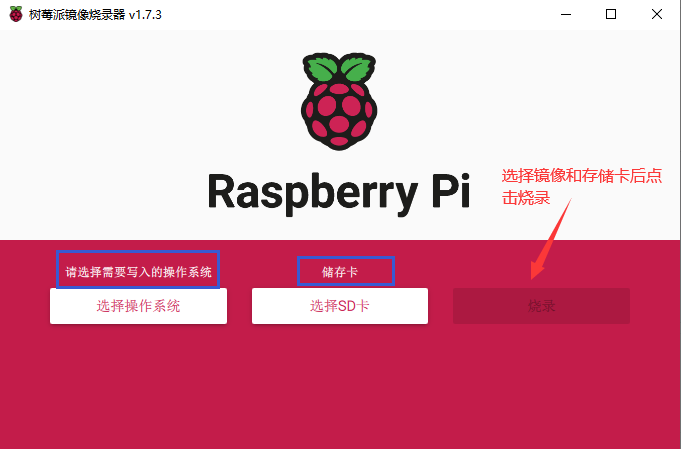
我用的是全新的系统, 树莓派官方的镜像,不带桌面版本,使用官方的烧录工具Raspberry Pi Image进行烧录,非常简单,中文界面。 树莓派官方软件和操作系统下载。选择下载好的ISO,选择要烧录的存储卡,然后点击烧录,等待烧录完成就可以把存储卡装到树莓派上了。
xoRZ2n.png
烧录完成后安装系统。用HDMI线连接树莓派到显示器上,连接键盘,设置键盘布局和时区,创建用户名和密码。安装好后登录用户,然后在系统设置打开SSH,以后我们就用远程登录了。

1
2
#进入系统设置
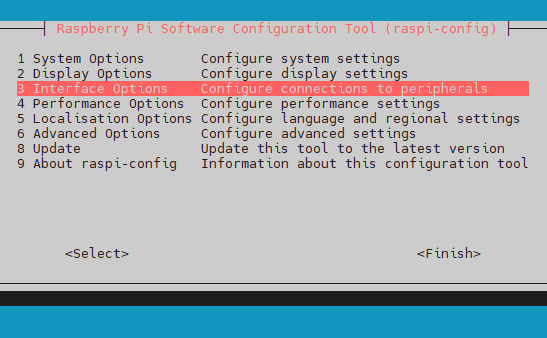
sudo raspi-config
选择第3个Interface Options

xoWeFe.png

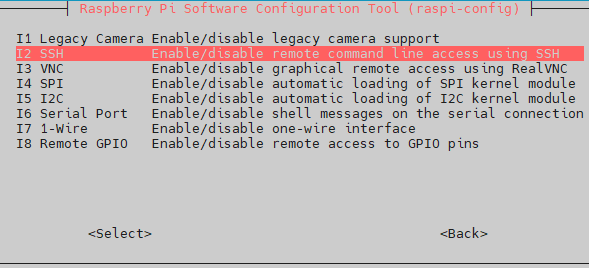
选择第二个I2 SSH

xoWVoD.png
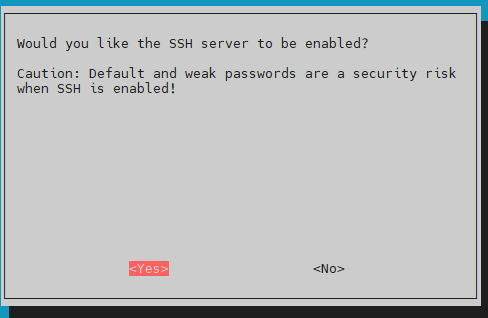
确认打开SSH

xoWEdO.png

然后我们就可以开始通过SSH来操作树莓派了,SSH登录的方法非常简单,就不多叙述了。

通过SSH登录树莓派后,我们先更新软件源,在这里我用的是清华源。

1
2
3
4
5
6
7
8
9
10
11
12
13
14
15
16
17
18
#备份软件源
sudo cp /etc/apt/sources.list /etc/apt/sources.list.bak
#更改软件源
sudo nano /etc/apt/sources.list

#在sources.list上删除或注释原来的内容,加上以下内容
# 默认注释了源码镜像以提高 apt update 速度,如有需要可自行取消注释
deb https://mirrors.tuna.tsinghua.edu.cn/debian/ bullseye main contrib non-free
# deb-src https://mirrors.tuna.tsinghua.edu.cn/debian/ bullseye main contrib non-free
deb https://mirrors.tuna.tsinghua.edu.cn/debian/ bullseye-updates main contrib non-free
# deb-src https://mirrors.tuna.tsinghua.edu.cn/debian/ bullseye-updates main contrib non-free
deb https://mirrors.tuna.tsinghua.edu.cn/debian/ bullseye-backports main contrib non-free
# deb-src https://mirrors.tuna.tsinghua.edu.cn/debian/ bullseye-backports main contrib non-free
deb https://mirrors.tuna.tsinghua.edu.cn/debian-security bullseye-security main contrib non-free
# deb-src https://mirrors.tuna.tsinghua.edu.cn/debian-security bullseye-security main contrib non-free

#保存文件,然后更新软件源
sudo apt-get update

开始教程

大概步骤如下:

  1. 安装环境
  2. 修改Nginx配置
  3. phpMyAdmin增加用户及数据库
  4. 下载Nextcloud,部署Nextcloud
  5. 安装网页设置
  6. 有关于Nextcloud警告处理设置

安装环境

照着以下的内容一行行复制执行

1
2
3
4
5
6
7
8
9
sudo apt-get install nginx
sudo apt-get install php php-fpm php-cli php-json php-curl php-imap php-gd php-mysql php-xml php-zip php-intl php-imagick php-mbstring libmagickcore-6.q16-6-extra php-gmp php-bcmath redis-server php-redis
sudo apt-get install mariadb-server phpmyadmin
sudo ln -s /usr/share/phpmyadmin /var/www/html
# mariadb低于10.4的可以执行以下内容
sudo mysql -u root -p
update mysql.user set plugin='mysql_native_password';
update mysql.user set password=PASSWORD("yourpassword") where User='root';
flush privileges;

如果mariadb的版本高于10.4,上面更改数据库的密码可能执行不了,可以参考下面的内容,来自官方文档。

1
SET PASSWORD FOR 'username'@localhost = PASSWORD("yourpassword");

修改Nginx配置

1
2
3
4
5
6
7
8
9
10
11
12
13
14
15
16
17
18
19
20
21
22
23
24
25
26
27
28
29
30
31
32
33
34
35
36
37
38
39
40
41
42
43
44
45
46
47
48
49
50
51
52
53
54
55
56
57
58
59
60
61
62
63
64
65
66
67
68
69
70
71
72
73
74
75
76
77
78
79
80
81
82
83
84
85
86
87
sudo nano /etc/nginx/sites-available/default

##删除原来的内容,或者照着下面修改
upstream php-handler {
# server 127.0.0.1:9000;
server unix:/var/run/php/php7.4-fpm.sock;
}
map $arg_v $asset_immutable {
"" "";
default "immutable";
}
server {
listen 80 default_server;
listen [::]:80 default_server;

root /var/www/html;

# Add index.php to the list if you are using PHP
index index.html index.htm index.nginx-debian.html index.php;

server_name _;
client_max_body_size 10G;
fastcgi_buffers 64 4K;

location = /robots.txt {
allow all;
log_not_found off;
access_log off;
}
location /.well-known {
location = /.well-known/carddav { return 301 /nextcloud/remote.php/dav/; }
location = /.well-known/caldav { return 301 /nextcloud/remote.php/dav/; }

# according to the documentation these two lines are not necessary, but version 21.0.0 will produce warnings in the overview setup check
location = /.well-known/webfinger { return 301 /nextcloud/index.php$uri; }
location = /.well-known/nodeinfo { return 301 /nextcloud/index.php$uri; }

# anything else is dynamically handled by Nextcloud
location ^~ /.well-known { return 301 /nextcloud/index.php$uri; }

try_files $uri $uri/ =404;
}
location ~ \.php(?:$|/) {

fastcgi_read_timeout 600;
fastcgi_send_timeout 600;
fastcgi_connect_timeout 600;
proxy_connect_timeout 600;
proxy_send_timeout 600;
proxy_read_timeout 600;
send_timeout 600;
fastcgi_split_path_info ^(.+\.php)(/.+)$;
include fastcgi_params;
fastcgi_param SCRIPT_FILENAME $document_root$fastcgi_script_name;
fastcgi_param PATH_INFO $fastcgi_path_info;
fastcgi_pass php-handler;
}
location ~ ^/(?:build|tests|config|lib|3rdparty|templates|data)/
{
deny all;
}

location ~ \.(?:css|js|svg|gif|png|jpg|ico|wasm|tflite|map)$ {
try_files $uri /nextcloud/index.php$request_uri;
add_header Cache-Control "public, max-age=15778463, $asset_immutable";
access_log off; # Optional: Don't log access to assets

location ~ \.wasm$ {
default_type application/wasm;
}
}

location ~ \.woff2?$ {
try_files $uri /nextcloud/index.php$request_uri;
expires 7d; # Cache-Control policy borrowed from `.htaccess`
access_log off; # Optional: Don't log access to assets
}

# Rule borrowed from `.htaccess`
location /nextcloud/remote {
return 301 /nextcloud/remote.php$request_uri;
}

location /nextcloud {
try_files $uri $uri/ /nextcloud/index.php$request_uri;
}
}

phpMyAdmin增加用户及数据库

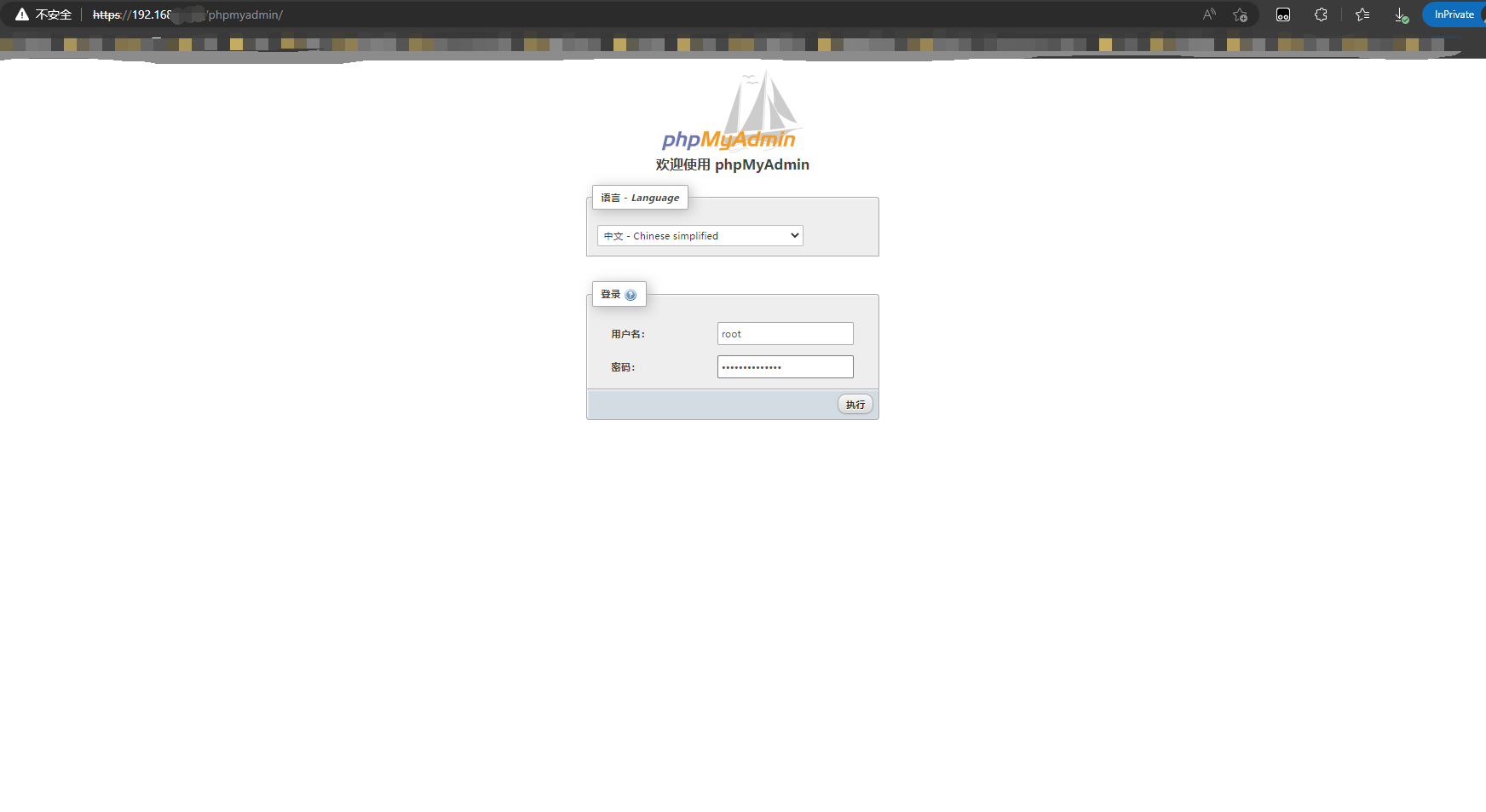
登录http://树莓派的ip/phpmyadmin/ 输入用户名和密码(root用户)

xo4HtU.png

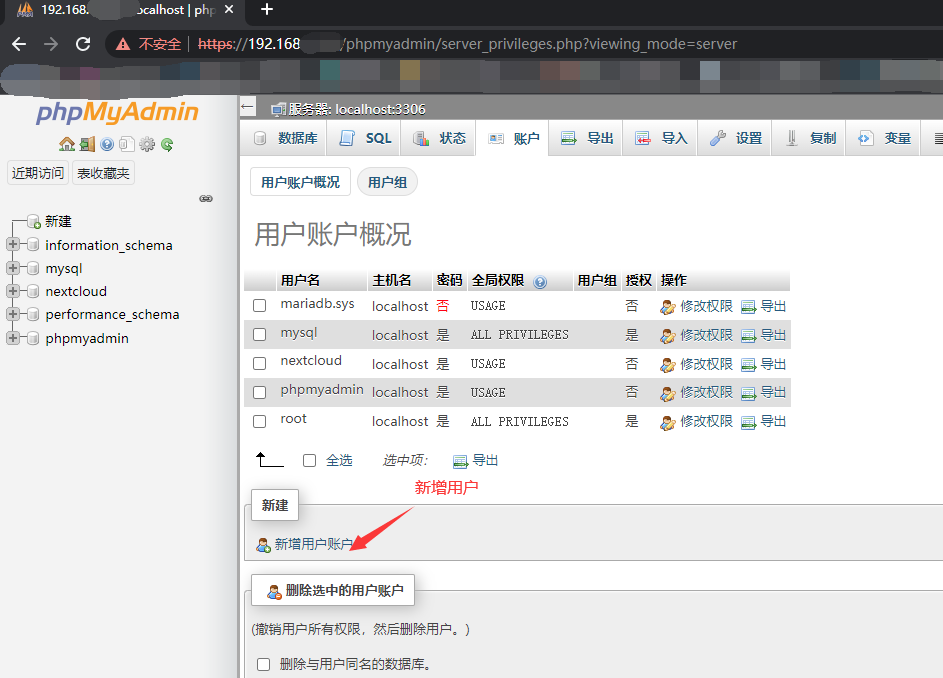
登录之后,在账户里新增用户

xoTYDA.png

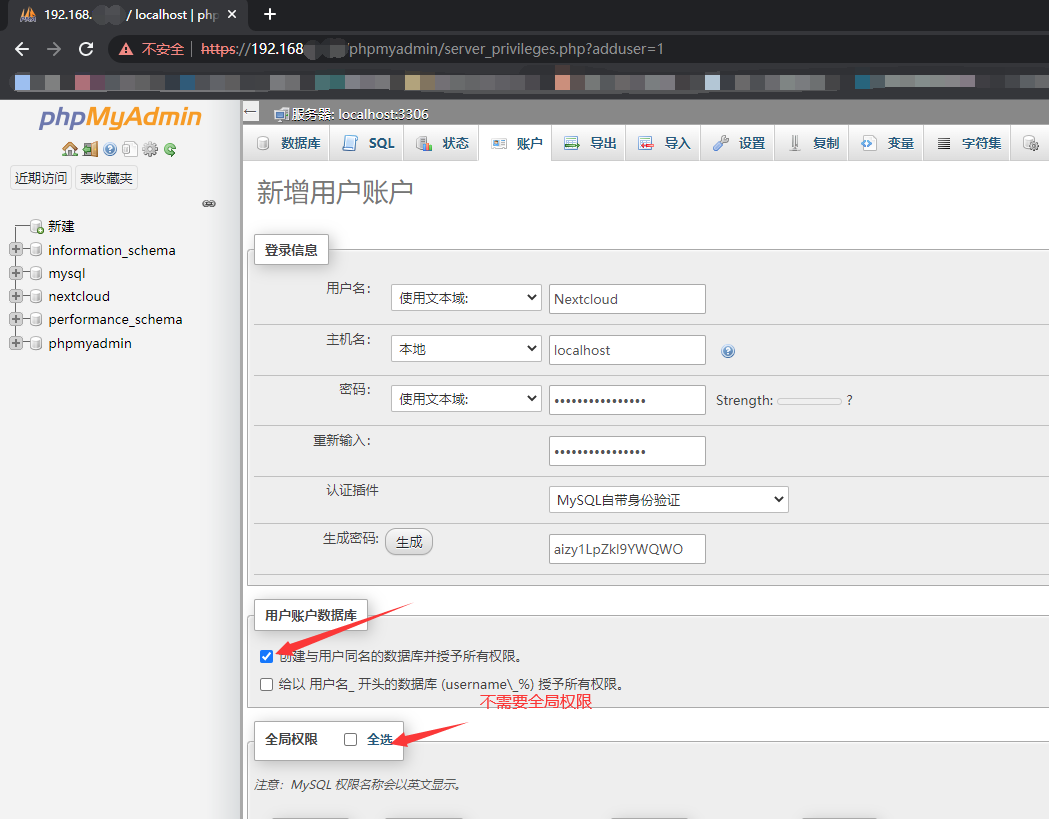
输入用户名密码,密码可以使用自带的生成器生成,然后勾选创建与用户同名的数据库并授予所有权限。
注意不要勾选下面的那个全局权限(建议密码都设的复杂一些)。

xoTJud.png

下载Nextcloud,部署Nextcloud

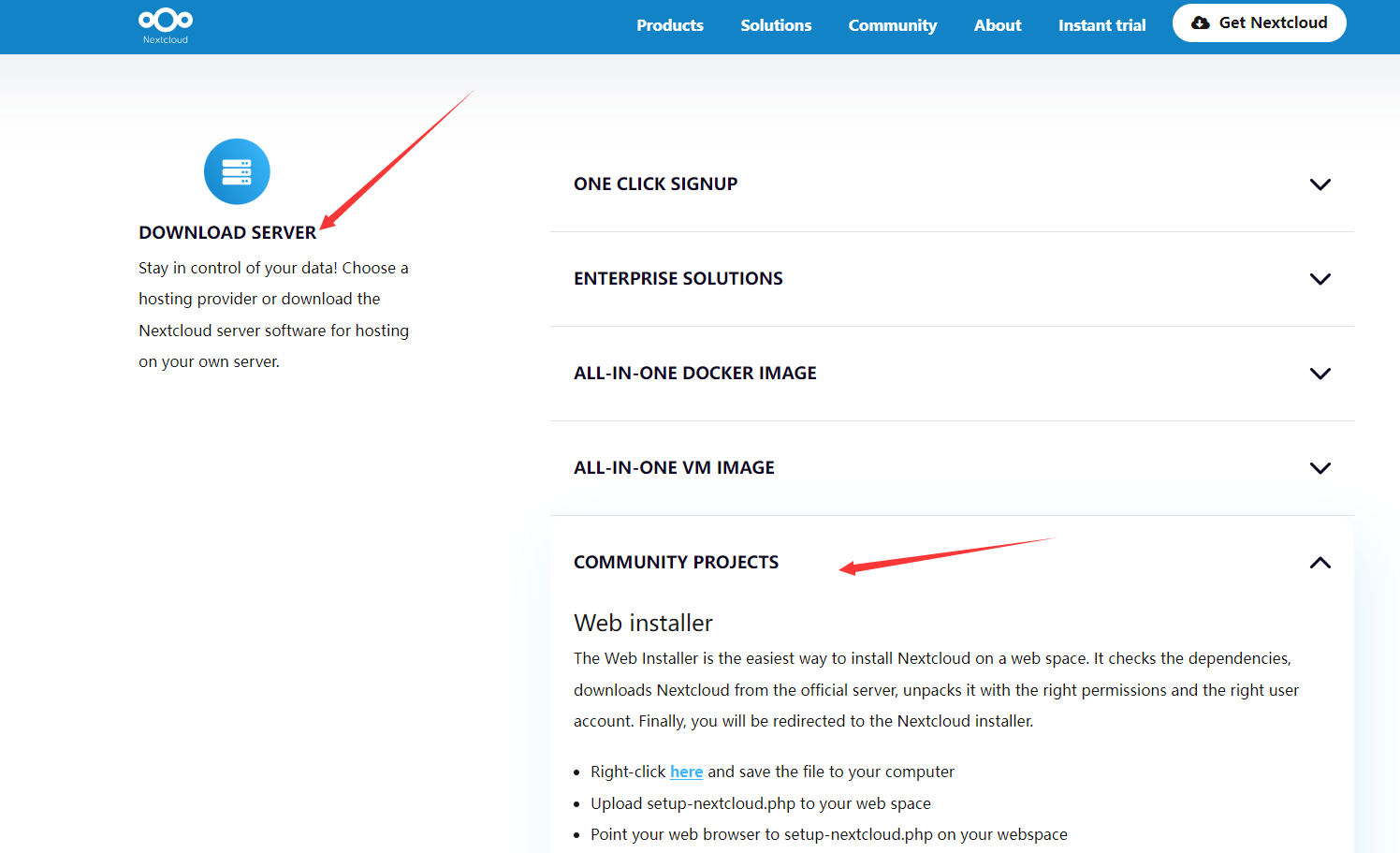
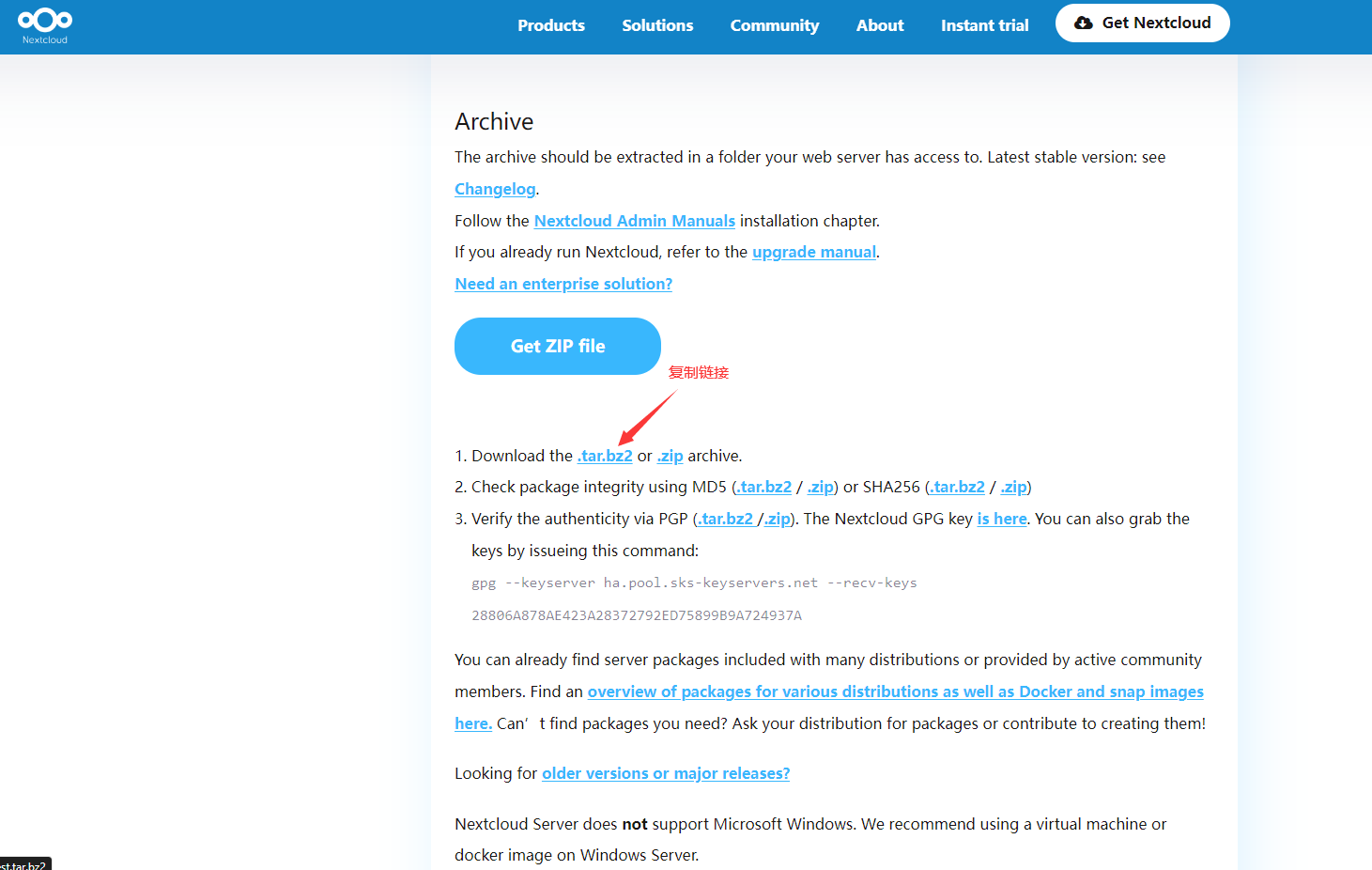
到官网获取链接下载Nextcloud的下载链接,复制tar.bz2的链接。
xoTzxe.png
xo7pKH.png
然后到树莓派上,使用wget下载

1
2
3
4
5
6
7
8
9
cd /var/www/html
sudo wget 官网复制的链接
sudo tar jxf xxx解压文件.tar.bz2
#设置文件所有者和组别为www-data
sudo chown -R www-data:www-data /var/www/html/nextcloud/
#创建Nextcloud的数据文件夹
sudo mkdir ~/NextCloudData
#设置文件所有者和组别为www-data
sudo chown www-data:www-data ~/NextCloudData/

安装网页设置

设置管理员的用户名和密码,将刚才创建好的数据库密码填入,数据保存目录填入,然后等待安装完成,就可以开始使用了。
详细内容待补充。(我已经安装好了,没有截图,以后再部署一次,其实也没啥好说的)

有关于Nextcloud警告处理设置

安装好后可以在管理员账户设置里看到有一些警告注意的项目,虽然可以忽略,但是还是都给处理了更好

php设置

1
2
3
4
5
6
7
8
9
10
11
12
13
14
15
16
17
18
19
20
sudo nano /etc/php/7.4/fpm/php.ini

#第一处修改
memory_limit = 512M

#第二处修改,在1770行左右
opcache.enable=1
opcache.enable_cli=1
opcache.interned_strings_buffer=8
opcache.max_accelerated_files=10000
opcache.memory_consumption=128
opcache.save_comments=1
opcache.revalidate_freq=1

#第三处修改,加入以下代码 保存,对应的问题如下面注释所将
sudo nano /etc/php/7.4/fpm/php-fpm.conf
#在最下面加入如下代码
env[PATH] = /usr/local/bin:/usr/bin:/bin:/usr/local/php/bin
##处理的问题
#PHP 的安装似乎不正确,无法访问系统环境变量。getenv("PATH") 函数测试返回了一个空值。 请参照安装说明文档 ↗中的 PHP 配置说明查阅您服务器的PHP配置信息,特别是在使用 php-fpm 时。

开启redis和修改地区

1
2
3
4
5
6
7
8
9
sudo nano /var/www/html/nextcloud/config/config.php
#在后面加入以下内容
'memcache.local' => '\\OC\\Memcache\\Redis',
'memcache.locking' => '\\OC\\Memcache\\Redis',
'redis' => array(
'host' => '127.0.0.1',
'port' => 6379,
),
'default_phone_region' => 'CN',

重启Nginx和php-fpm服务

1
2
sudo service nginx restart
sudo service php7.4 -fpm restart

NextCloudCron后台任务

这个就是打开Linux的cron定时执行任务,Nextcloud默认的是Ajax,但是官方的文档说用Cron定时执行任务更好。

1
2
3
sudo crontab -u www-data -e
#加入如下内容
*/5 * * * * php -f /var/www/html/nextcloud/cron.php

这是官方的文档教程
Background jobs

1
2
3
4
5
6
7
8
9
10
11
12
13
14
15
16
17
18
19
20
21
22
23
24
25
26
27
Cron
Using the operating system cron feature is the preferred method for executing regular tasks. This method enables the execution of scheduled jobs without the inherent limitations the Web server might have.

To run a cron job on a *nix system, every 5 minutes, under the default Web server user (often, www-data or wwwrun), you must set up the following cron job to call the cron.php script:
# crontab -u www-data -e

And append this line:
*/5 * * * * php -f /var/www/nextcloud/cron.php

You can verify if the cron job has been added and scheduled by executing:
# crontab -u www-data -l

Which returns:
[snip]
*/5 * * * * php -f /var/www/nextcloud/cron.php

Note

You have to replace the path /var/www/nextcloud/cron.php with the path to your current Nextcloud installation.

Note

On some systems it might be required to call php-cli instead of php.

Note

For some configurations, it might be neccessary to append --define apc.enable_cli=1 to the cron command. Please refer to Memory caching (section APCu).w/nextcloud/cron.php

结尾

到这里就部署好了Nextcloud,Nextcloud移动端PC端都有相应的客户端,可以去官网或设备的应用商店下载。但是目前这样只能在局域网使用,在外网就无法使用,还有就是没有配置https。后面有时间再写通过frp,使用一台服务器中转,做内网穿透,可以在外网访问,并申请证书,配置https。